
PostgreSQL
Lucity gives you fully managed PostgreSQL. Provision a database in a couple of clicks, connect a service to it without handling credentials, and leave the running of it to the platform.
Every database comes with high availability and automatic failover, continuous backups with point-in-time recovery across the last 30 days, and encrypted connections. Rather than splitting those across plans, every Lucity database gets all of them. What you configure is the CPU, memory and storage it needs, so the database fits your workload rather than a tier.
Provisioning
On the project canvas, click Create and choose PostgreSQL. Give it a name between 2 and 16 characters and confirm.
A database belongs to one environment, so development and production each get their own. Provisioning takes a minute or two, after which the node on the canvas turns healthy and the credentials are available.
You get PostgreSQL 17, with a database called app owned by a user called app. That user owns everything it creates, so migrations, extensions and schema changes all work without asking anyone for permission.
Connect
Your services reach the database over the private network inside their environment. By default nothing else can, though you can expose it to the internet if you need to.
The way to connect a service is a dynamic variable: open the service's Variables tab, add a key such as DATABASE_URL, click the link icon, and pick fqdn-uri from the database. The connection string is never copied anywhere, so there is nothing to keep in sync.
A database exposes six values:
| Variable | What it is |
|---|---|
fqdn-uri | The complete connection string, which is usually the only one you need |
host | The private hostname |
port | 5432 |
dbname | app |
user | app |
password | The generated password |
The Connect tab on the database shows the same values if you need to read them yourself.
Public access
A database is private by default, which is where it should stay. When you need to reach it from an external tool, open the Connect tab and switch Internet access on.
That gives the database a public hostname on port 5432. The user and password stay the same as on the private network, so only the connection string changes. Traffic is encrypted end to end: TLS terminates at the database itself, not at a proxy in front of it.
Because of that, your client has to use TLS. Connect with sslmode=require or stricter, which the connection string shown in the dashboard already does. With TLS off, the connection will not reach the database at all.
psql. Older clients connect to the right port and get nowhere.Allowed addresses
Only the addresses you allow can connect over the public hostname, so a freshly exposed database lets nobody in. When you switch Internet access on, you can allow the computer you're using right away, and later add more under Allowed addresses. Each entry is an IPv4 address like 203.0.113.7 or a range like 203.0.113.0/24, and a short description helps you remember whose it is.
Allow connections from anywhere adds 0.0.0.0/0, which lets every address through. Then only the password protects the database, so prefer listing the addresses you actually connect from. Removing an entry never opens the database up, so once the last one is gone, nobody can connect.
Switching Internet access off removes the public hostname together with the allowed addresses. It takes effect immediately, so ideally leave the database unexposed and turn this on only for as long as you need it.
SSL SYSCALL error: EOF detected, the same error an old client without SNI gets. If you see it, check that your current address is on the list.CPU, memory and storage
Under the database's Settings tab you can give it between 0.25 and 4 vCPU and between 256 MB and 16 GB of memory, defaulting to 0.5 vCPU and 512 MB. Storage starts at 16 GB and goes up to 1 TB.
Storage can be grown but never shrunk, so start with what you need and raise it as you go. Growing it happens in place, without downtime and without a restore.
Scaling CPU or memory triggers a rolling restart across the instances, so the database stays available throughout.
Database explorer
Lucity gives you basic tools for working with your data straight from the dashboard.
Tables lists every table with its columns, types and an estimated row count, and shows the rows themselves a page at a time. It is the fastest way to check that your migration did what you expected.
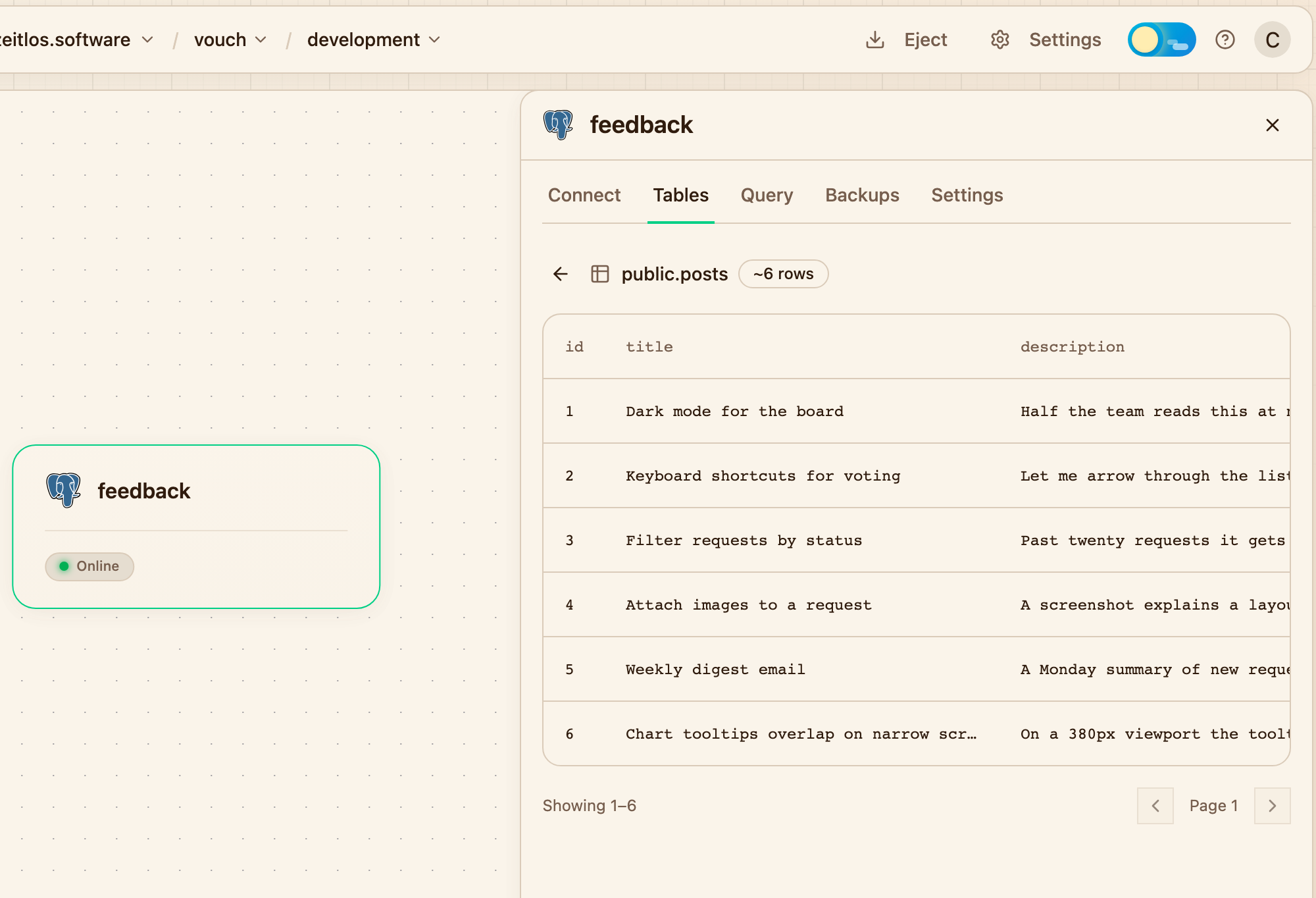
Pick a table and read its rows without leaving the dashboard.
Query runs SQL. It is a real connection, so it will happily write as well as read: be as careful here as you would be in psql against production. Statements are cut off after 30 seconds and results capped at 1000 rows, so use an external tool or a service in the same environment for long-running queries and migrations.
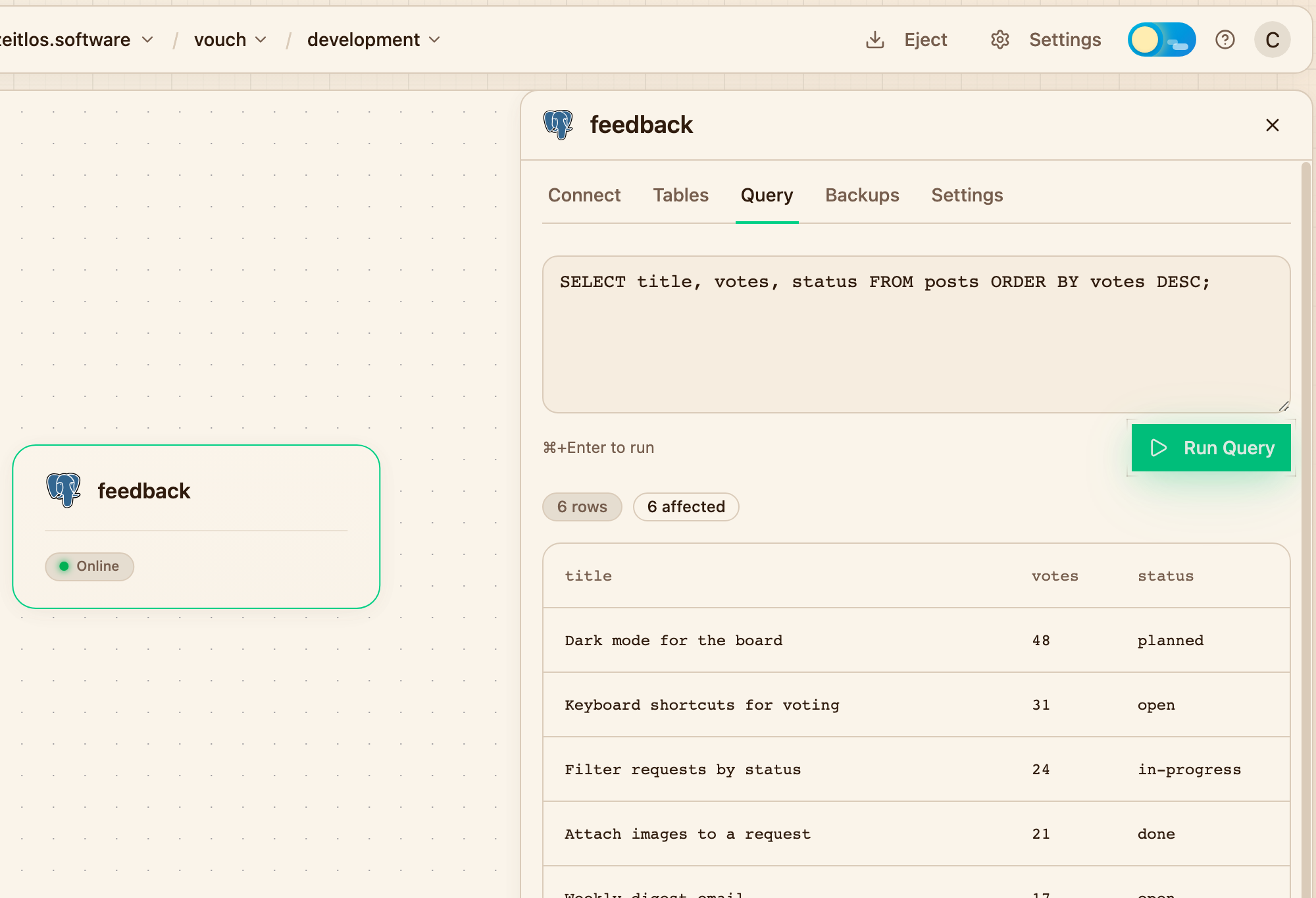
A query and its result, run against the database from the dashboard.
pg_stat_statements is enabled, so you can query it directly to find out which statements are costing you the most.
Backups
Backups are enabled by default, with a retention of 30 days, and there is nothing to configure.
A full base backup runs weekly, on Sunday at 02:00 UTC. Between those, every write is archived continuously as it happens, so the database can be restored to any moment in the window rather than only to the times a backup happened to run.
The Backups tab shows how far back you can currently go, when the last backup completed, and the list of base backups with their status. You can also trigger one by hand there, which is worth doing before a migration you are unsure about.
Point-in-time restores
Because every write is archived as it happens, you can restore to any moment inside the retention window, down to the second. This means you can restore your database to right before the moment something went wrong.
Restores always happen to a fresh database, which avoids any risk of data loss on the source. The original keeps running and serving traffic throughout.
From the Backups tab, choose a point in time and give the new database a name. When it comes up you have both, so you can compare them, copy across what you need, or point your service at the restored one by changing its DATABASE_URL.
What's not there yet
Some things you might expect from a managed database are not built yet:
- Choosing or upgrading the PostgreSQL version. Every database is PostgreSQL 17.
- Read replicas. The standby is there to take over when the primary fails, not to serve reads. Every connection goes to the primary.
- Extensions beyond the image. You get the standard contrib set and
pgvector. Anything else, PostGIS included, cannot be added. - Connection pooling. There is no pooler in front of the database, so pool in your application and remember that the pool size counts per replica.
- Exports from the dashboard. Run
pg_dumpyourself, either against a publicly exposed database or from a service in the same environment. - Database metrics and alerting. Services and volumes have usage graphs; databases do not.
Under the hood
Databases are CloudNativePG(opens in a new tab) clusters, running two instances on separate machines with replication slots and unsupervised failover between them. That is where the high availability and the continuous archiving come from, and it is a project you can run yourself: an ejected environment keeps its databases as ordinary CloudNativePG resources, with the same backups and the same recovery behavior.
Next steps
- Variables for wiring a database into a service
- Key-value store for caching and queues, which do not belong in PostgreSQL
- Environments for keeping production data away from development