
Workspaces
Workspaces are how organizations are represented within Lucity. One workspace can stand for a whole company, or for a team, a client or a department once an organization is large enough to want them kept apart.
A workspace holds all your projects and everything inside them. Its members have access to every project it contains. Each workspace has its own plan and is invoiced separately.
Signing up gives you a personal workspace to start from and you can always create more.
Members and roles
Workspace members have one of two roles:
| Role | What it can do |
|---|---|
| Member | Everything to do with building and running software: create projects and environments, deploy services, provision databases and buckets, edit variables, add domains. |
| Admin | All of that, plus the workspace itself: inviting and removing people, changing roles, editing the workspace name, managing the subscription and API tokens, and deleting the workspace. |
Under Settings → Members, an admin can invite members by email and configure their role. The same interface can also be used to change the role of an existing member or remove them from the workspace. Removing a member revokes their access immediately, while the projects and services they created are untouched within the workspace.
API tokens
Under Settings → API tokens, an admin can create tokens for interacting with the API.
An API token carries a role in the same way a member does, so a token created as a member can do member things and no more. The token value is shown once, when you create it, and never again. Revoking one takes effect immediately.
Switching workspaces
The workspace picker sits at the far left of the header, before the project and environment. Switching moves the whole dashboard, so the projects you see, the resources you can reach and the bill you are looking at all belong to the workspace you have selected.
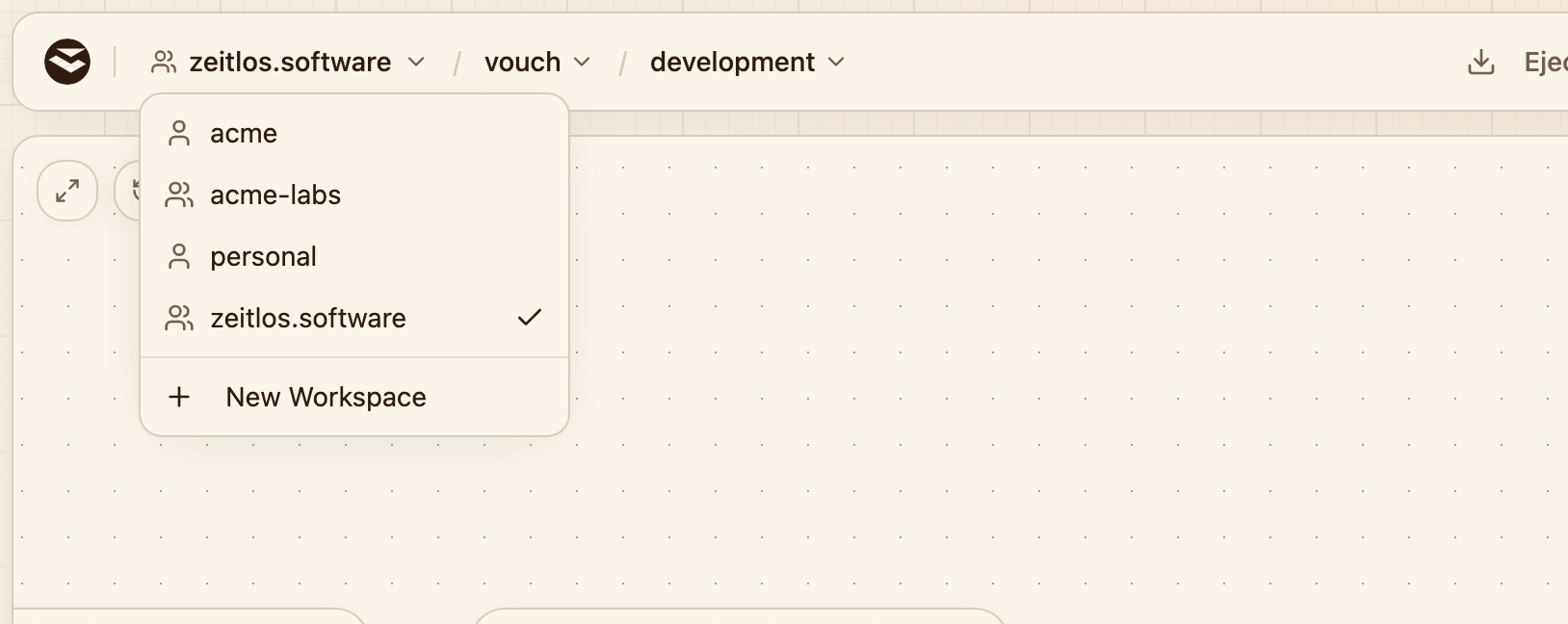
Every workspace you belong to, and a way to start another.
Personal workspaces
Signing up creates a personal workspace for you, and it cannot be deleted. It is the natural home for experiments and hobby projects, the things that do not belong to a team.
When work does belong to a team, create a workspace for the team rather than growing your personal one into a shared space.
Deleting a workspace
A workspace can only be deleted once it is empty, so you have to delete each project within it first. See deleting a project for what that involves.
Once no projects are left, Settings → Danger Zone removes the workspace, its members and its subscription.
Next steps
- Projects for what lives inside a workspace
- Environments for how a project is split up
- Billing for what a workspace costs